
Work activities
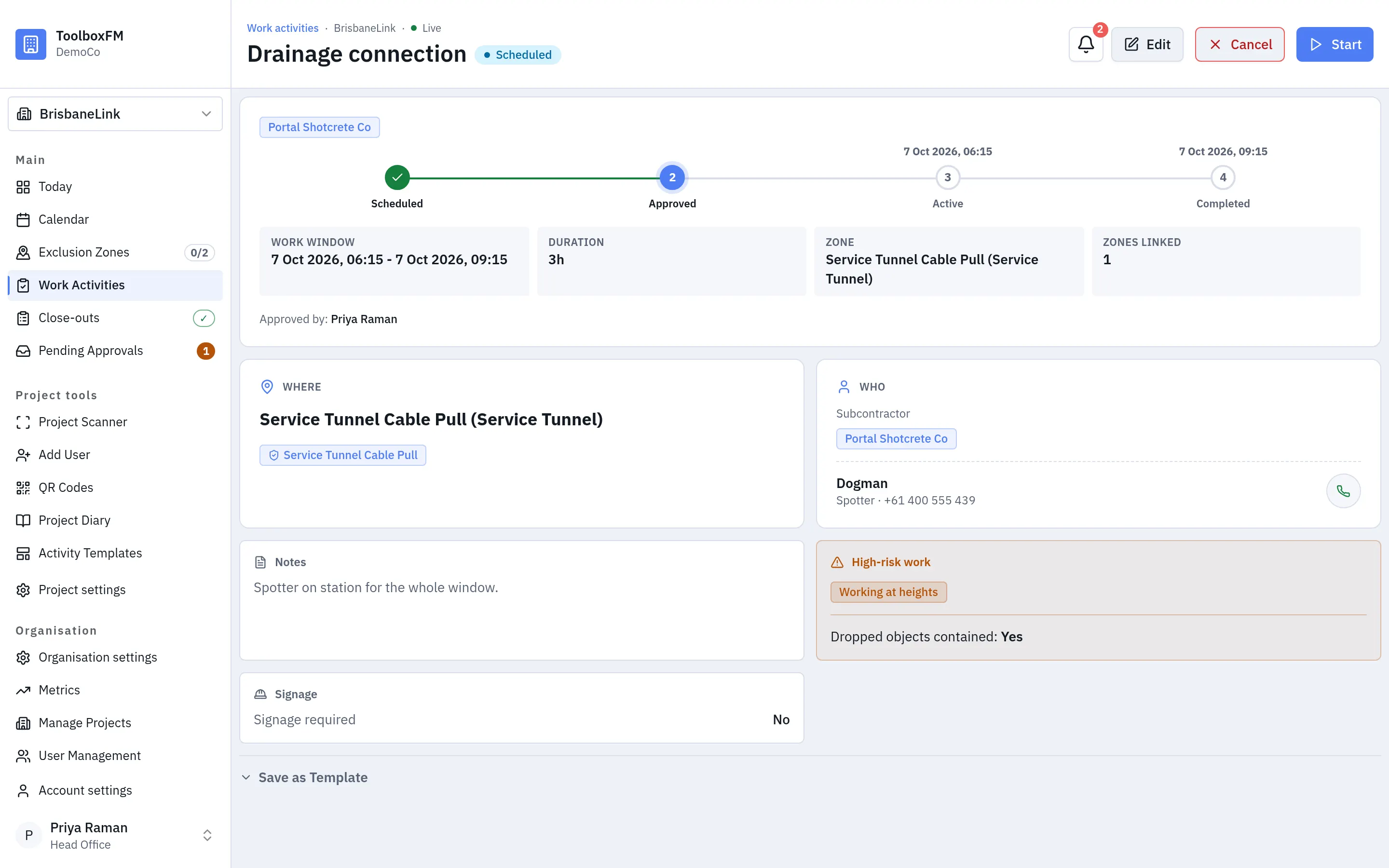
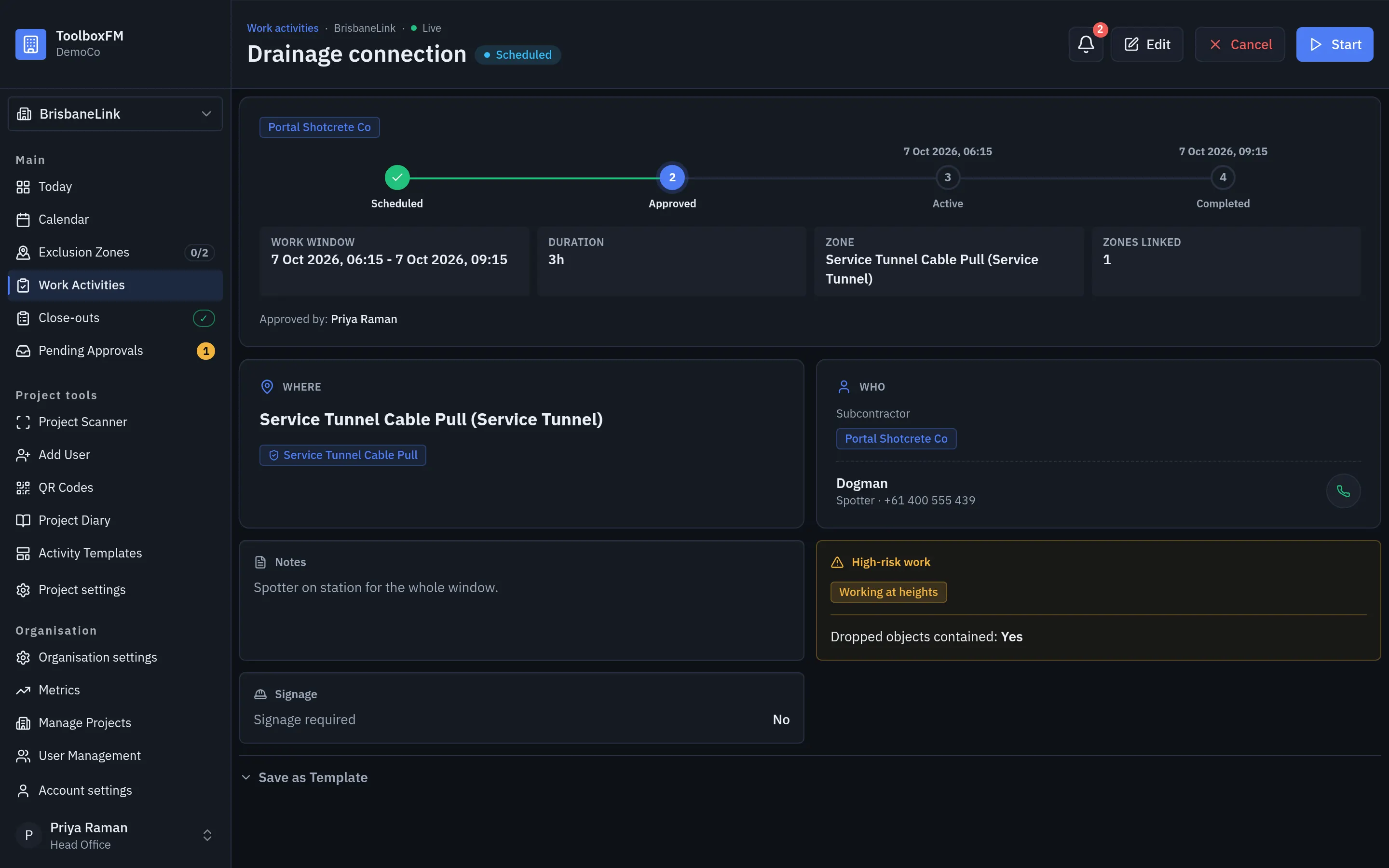
A work activity is one crew doing one job in one zone over one time window. It is the thing approvals, the day board, pause and close-out all attach to.
Creating one
Section titled “Creating one”ToolboxFMWork activitiesNew activity and pick the zone, the time window and the subcontractor.
If the zone is an exclusion zone, a live availability check appears next to the time window as you fill the form in. It tells you before you submit whether the slot is already taken, rather than after.
High-risk work
Section titled “High-risk work”Record every high-risk work type the job involves: Working at heights, Scaffolding, Asbestos, Excavation, and the rest. The list is what the approver sees, so select all of them, not the first one that fits.
Choosing Working at heights, Scaffolding or Precast concrete adds one follow-up question: whether the exclusion zone is large enough to contain dropped objects.
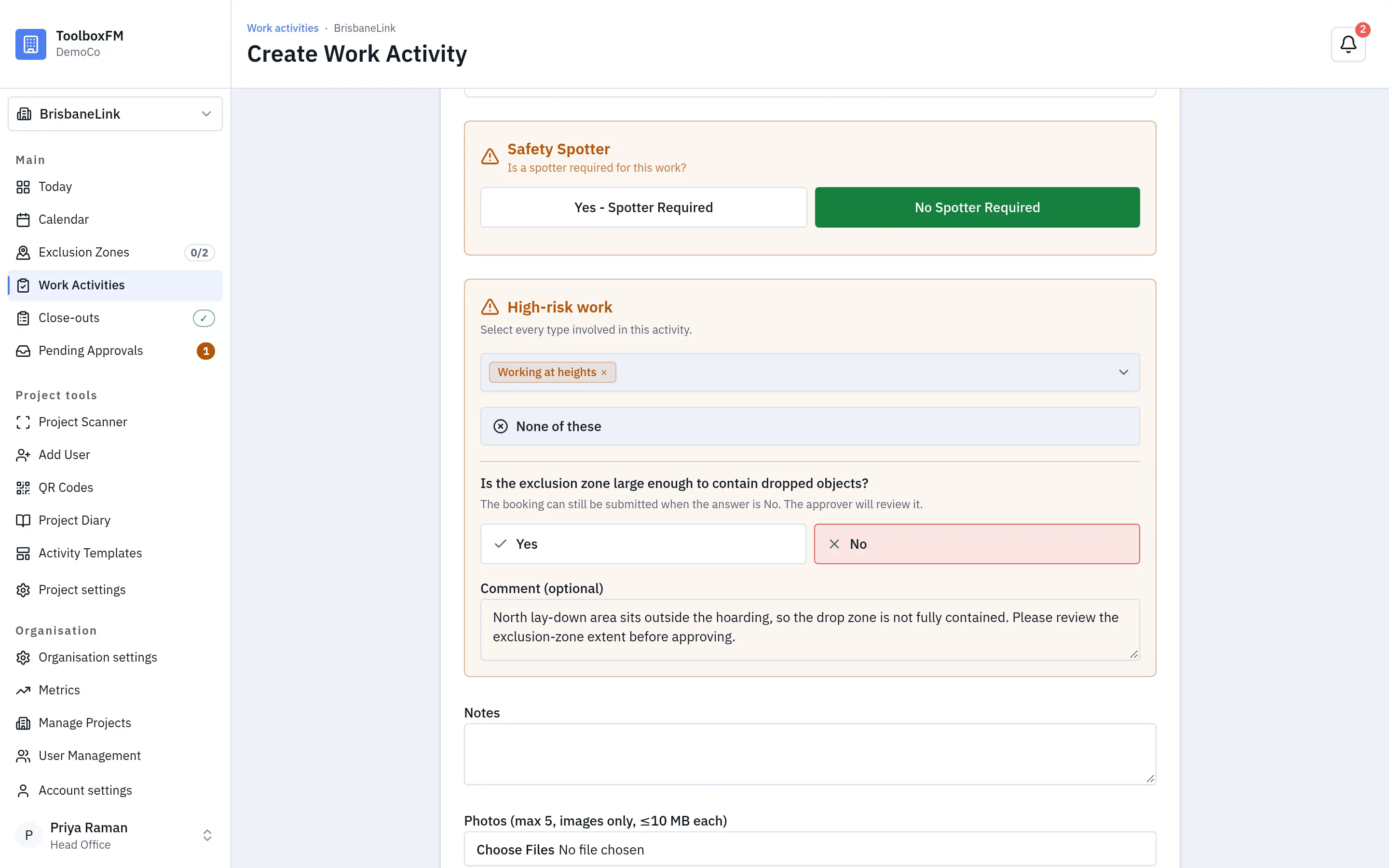
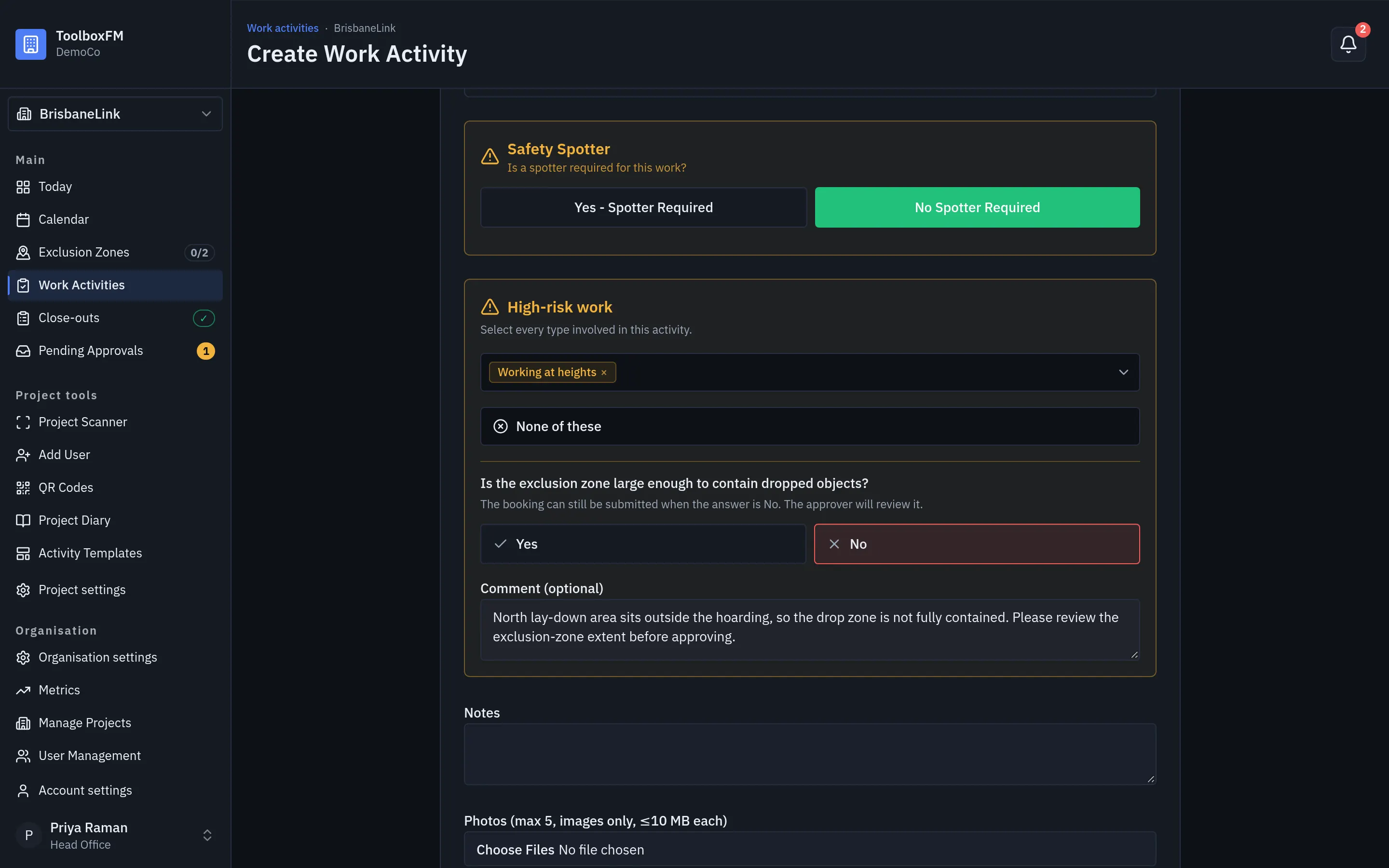
Answer No when objects can fall outside the zone, and use the comment to explain what the approver must consider. The activity still submits. The answer and the comment travel with the booking into the approvals queue, where they are shown next to the request.
Approval
Section titled “Approval”A new activity waits for approval. The approver sees the high-risk work the crew recorded, the dropped-objects answer where one applies, and any clash with a booking that already holds the zone. Who can approve it, and what happens when two activities want the same exclusion zone, is covered in Approving work.
Running
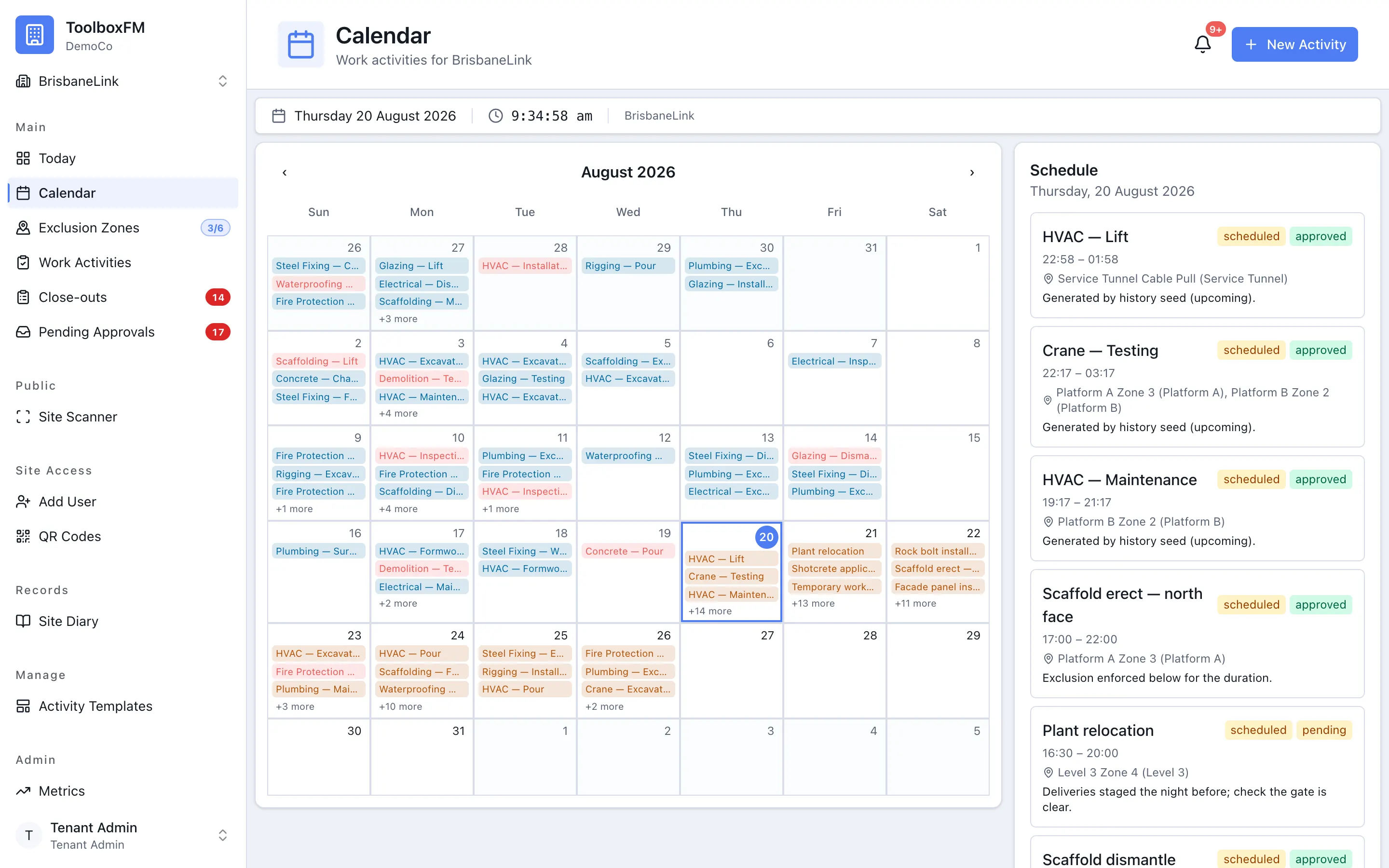
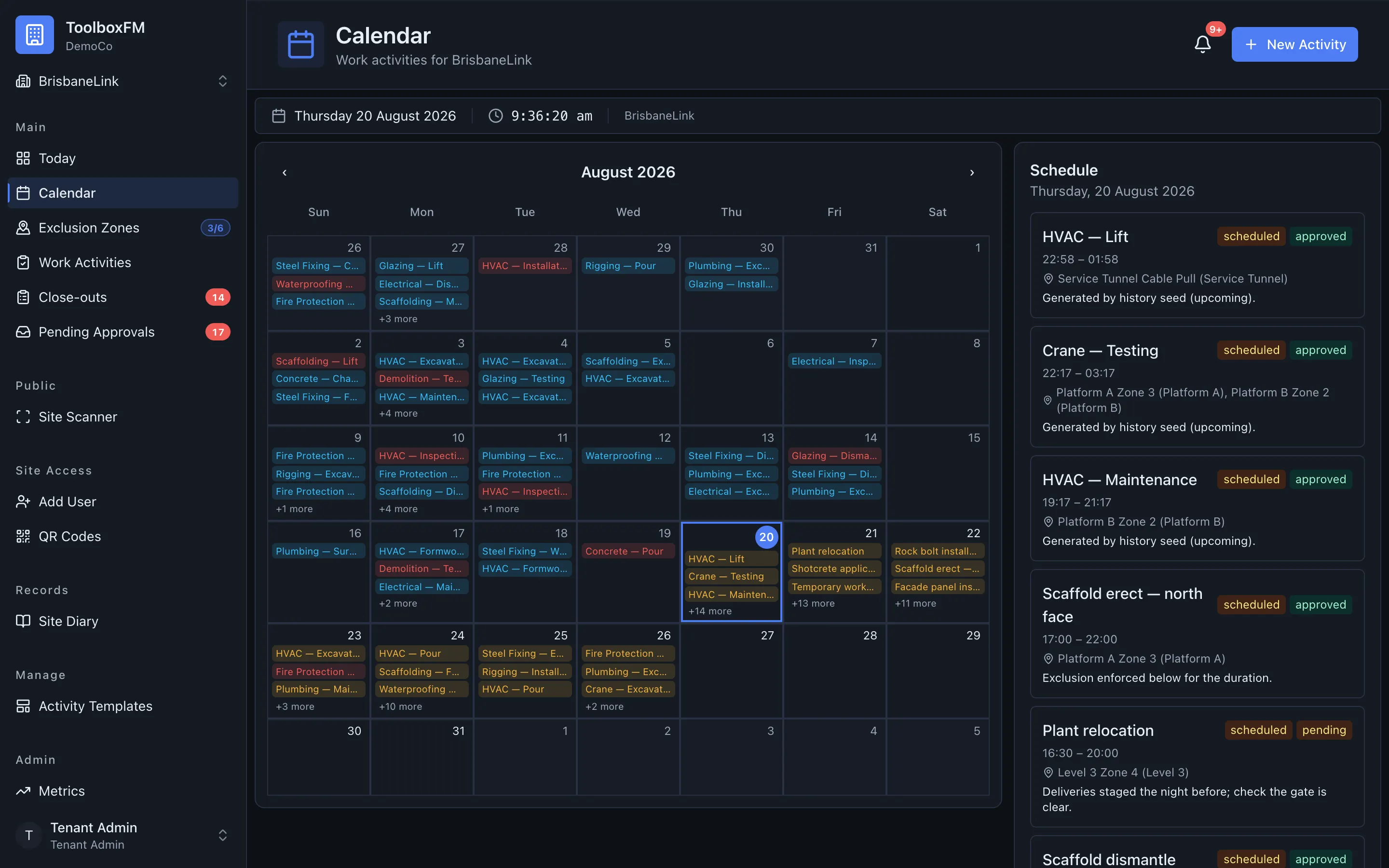
Section titled “Running”An approved activity starts on its own at its scheduled time and becomes active. Nobody has to press start.
Pausing
Section titled “Pausing”A crew can be paused and resumed while the activity is active. Pausing is a sub-state of active, not a separate stage — a paused activity still holds its exclusion zone, so nobody can book over the top of a crew that is coming back.
A Subcontractor Supervisor can only pause their own subcontractor’s activities. That is deliberate: paused time feeds lost-time reporting by subcontractor, so cross-company pausing would corrupt the numbers at the point they are recorded.
Finishing
Section titled “Finishing”An activity does not end on a timer. When its scheduled finish passes it stays open and ToolboxFM marks it overdue: it keeps blocking its exclusion zone, and the activity page shows an Extension marker where the scheduled finish sits in the timeline. An activity that never started is treated the same way once its window passes.
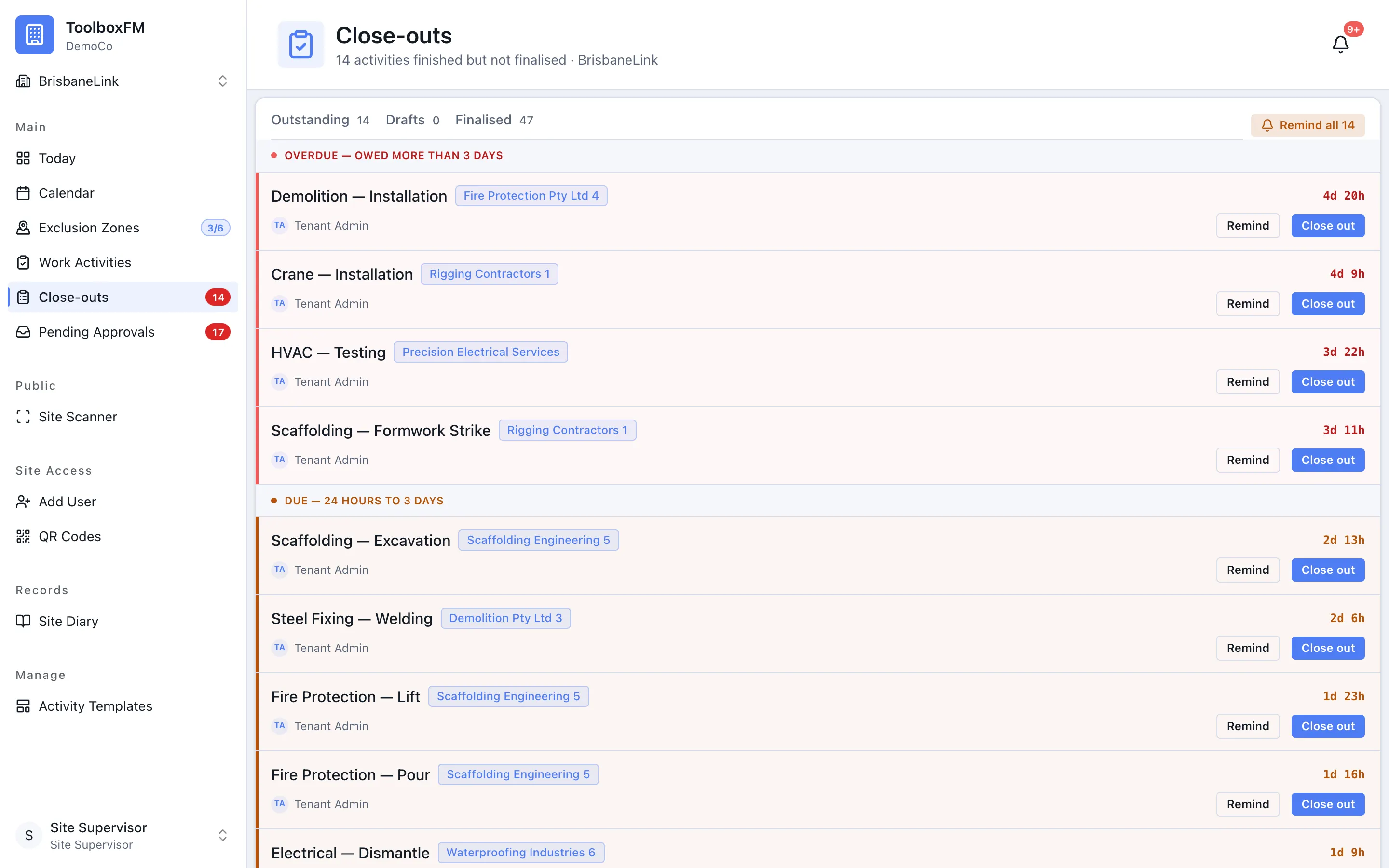
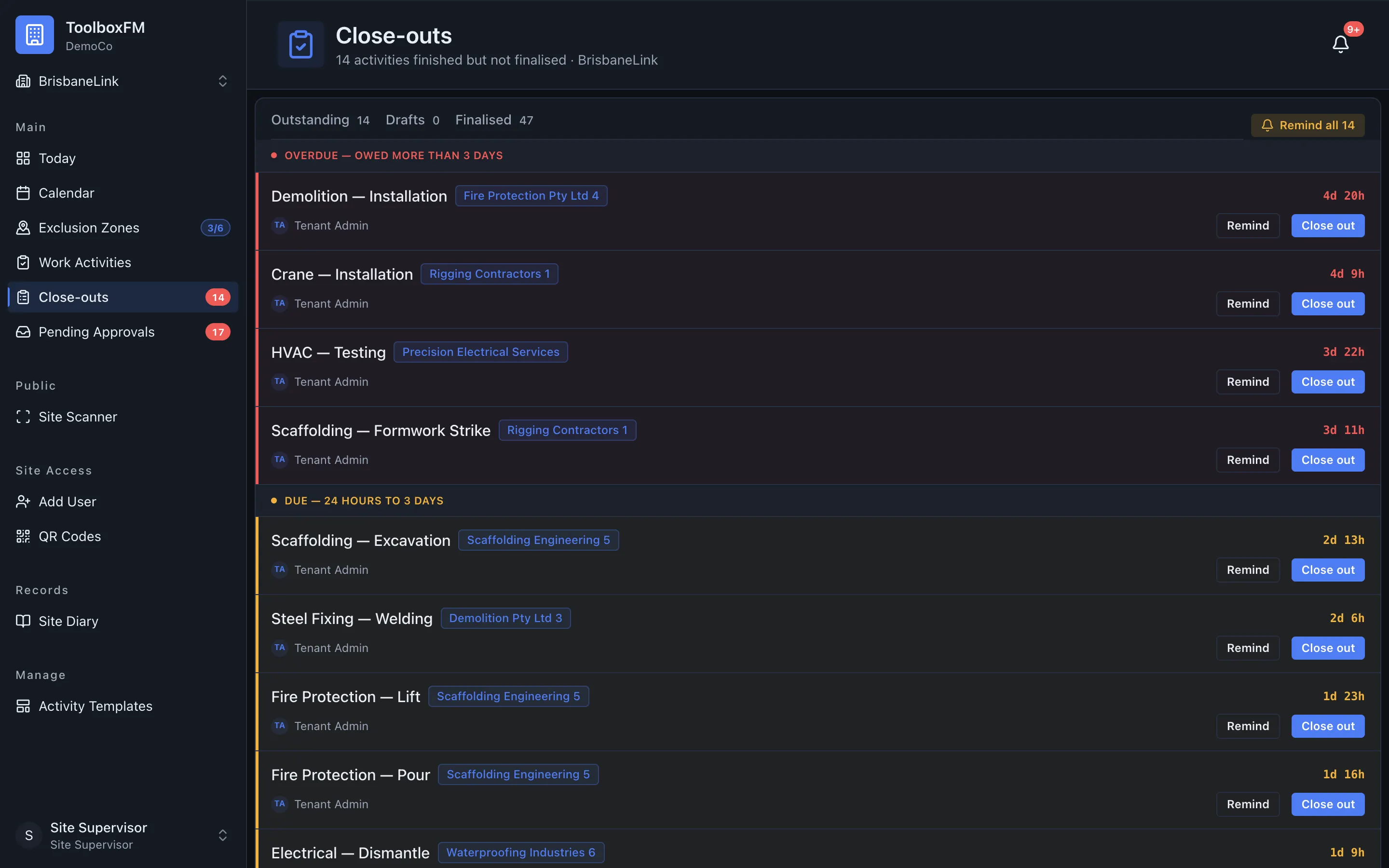
Somebody ends the finished work with End activity. Overdue work can also be extended instead, to push the finish out to the time the crew actually needs. Because a person always makes that call, close-out is asked afterwards rather than blocking the end. You get a nudge to answer the close-out questions rather than a wizard standing between the crew and the gate.
After submission
Section titled “After submission”A Subcontractor Supervisor can file a close-out for their own subcontractor’s activity once. After it is submitted, only a Project Supervisor or Head Office can select Edit Close-Out and save a correction. A correction keeps the original submitter and submission time.
The first submission and every later correction get separate entries in the Project Diary. The audit trail also records who made each correction and the exact before-and-after values.
Overruns
Section titled “Overruns”An activity that runs past its scheduled finish is not closed by the system, and no setting closes it for you. It stays open as overdue until somebody ends it or extends it.
Each extension is recorded as an episode that starts at the scheduled finish, so the time a job runs over stays visible in reporting rather than being silently closed away. Anything overdue — whether it overran or never started — is shown together in one place, and Extend is the way to rescue it.